
The Manager Home page is your starting point in Ausmed. It has two tabs: My Tasks shows the outstanding work that needs action and the staff accounts across your teams, and Overview lets you pick a location, team or reporting line to review its requirements, staff and compliance.
Who this article applies to:
-
Team/Location Managers, Reporting Line Managers
- Organisation Managers
Note: Organisation managers can now open the Home page without also needing a team, location or reporting line manager role.
In this article:Getting around the Home page
When you log in, the Home page greets you by name and opens on the My Tasks tab.
Use the My Tasks and Overview tabs at the top of the page to switch between acting on outstanding work and reviewing a group in detail.
Note: Compliance rates no longer appear across the top of the Home page. You'll now find them in the Overview tab once you select a group.
Status badges
Your My Tasks and Overview use the same status badges, so you can see what needs attention first.
Urgent
-
Previously: Your immediate tasks
-
Missed learning requirements and overdue practical activities. These type of tasks require manager action to progress these requirements to be counted towards staff compliance.
At Risk
-
Previously: Staff overdue
-
Overdue requirements for staff and managers.
On Track
-
Previously: Open
-
Items that have been assigned but not yet overdue.
Monitor
-
Previously: Monitor (unchanged)
-
Items that don't need immediate action but are worth keeping an eye on — for example, staff who haven't acknowledged policies.
The My Tasks tab
The My Tasks tab shows outstanding tasks that needs manager action. What you see depends on your manager role and which Ausmed products your organisation has. If your organisation doesn't use Perform, for example, Perform tasks won't appear.
Tasks are grouped by the teams and locations you manage. Each task appears as a card showing its status, what's outstanding and how many staff it affects.
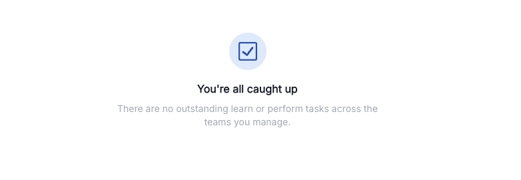
Note: If nothing needs your attention, you'll see a You're all caught up message.
My Staff panel
The My Staff panel sits on the My Tasks tab. It lists the user accounts across the teams you manage and shows whether each account is Active or Invited.
In the panel you can:
- Search for a staff member by name.
- Filter the list.
- See staff who haven't accepted their invitation yet, with a reminder to follow them up.
Note: My Staff only shows staff in the teams you manage. It doesn't show everyone in your organisation.
The Overview tab
The Overview tab lets you review one group of staff in detail. A group can be a location, a team or a reporting line.
Select a group
-
Click the Overview tab.
-
Click the group selector dropdown at the top of the tab.
-
Click Locations, Teams or Reporting Line to filter the list by group type.
-
Search for the group by name, or scroll the list.
-
Select the group you want to review.
-
If you manage only one group, it's selected for you automatically.
-
What you'll see for a group
Once you select a group, the main area shows two tabs:
- Requirements — the group's requirements, grouped by product (Learn, Perform and Policies).
- Staff — everyone in the group, with their outstanding counts. Click a staff member to see their details.
On the Staff tab, you can also:
- Search for a staff member by name.
- Sort the list by Status, Name or Highest count. Highest count puts staff with the most requirements at the top.
The sidebar shows:
- Group Summary — the name of the selected group, its type (location, team or reporting line) and how many staff are in it.
- Group Compliance — the percentage of staff in the group who have no overdue or missed requirements, for Learn, Perform and Policies. Each product shows how many staff are compliant out of the total, and your target where one has been set.
Note: If your permissions don't allow you to see full staff details, you'll see a notice on the Staff tab.
Take action on a task
You can take action in the same way on both tabs: on tasks from My Tasks, and on a group's requirements from Overview.
-
Find the task on My Tasks, or select a group and find the requirement on Overview.
-
Click View on the task or requirement.
-
Review the affected requirements or staff in the list that opens.
-
Select one or more items, then choose an action. Depending on the item type, this may include:
-
- Give Extension — extends the due date for the selected requirements
- Mark as Complete — records the requirement as completed
- Mark as Skipped — removes the requirement from the compliance count for those staff
- Send Reminder — sends a reminder notification to the affected staff
Caution: If you're an Organisation Manager, any action you take on the Overview tab may be on behalf of the manager responsible for that group. Consider letting them know before you extend, complete or skip requirements for their staff.
Tip: Use Select all to action every item at once. This is useful when you need to extend or remind a large group of staff.
Tips for using the Home page
- Start each day on My Tasks to clear anything that needs action before you dig into the details.
- If you see You're all caught up, your teams are on track.
- Use Overview during audit preparation to check compliance for one location, team or reporting line at a time.
- Your existing dashboards haven't gone anywhere. You can still go to Learn, Perform and Policies from the top navigation bar for full reporting and management tools.