
Who this applies to
- Users with organisation manager permissions who manage Perform settings
- Managers in a Perform reporting line, whose access changes when this setting is on
By default, managers in Perform can only view and action data for their direct reports. Skip-level access extends this to the whole reporting line below them. This article explains how skip-level access works, what to check before you turn it on, and how to turn it on or off.
What skip-level access is
Skip-level access lets a manager view and action Perform data for anyone below them in their reporting line, not just their direct reports.
For example, Robbie, Tim and Eric are in the same reporting line:
- Robbie is Tim's direct manager.
- Tim is Eric's direct manager.
|
Who |
Without skip-level access |
With skip-level access |
|---|---|---|
|
Robbie |
Can view and action Tim's data only |
Can view and action Tim's and Eric's data |
|
Tim |
Can view and action Eric's data |
Can view and action Eric's data (no change) |
|
Eric |
No manager access |
No manager access (no change) |
Access flows down the reporting line only. Managers can't view or action data for people above them or in other reporting lines.
The toggles you turn on control which actions and views extend down the reporting line. If a toggle is off, that action or view stays limited to direct reports.
Before you turn on skip-level access
Skip-level access changes who can see and act on your staff's Perform data. Check the following before you turn it on:
- Senior managers gain wider access. Managers near the top of a reporting line can view and action data for everyone below them. In a large organisation, this can be hundreds of staff.
- Your reporting lines need to be accurate. Access follows the reporting line set up in Perform. If a reporting line is wrong, the wrong managers may gain access.
- Staff may not expect it. Staff may assume only their direct manager can see their Perform data. Consider letting staff know before you make the change.
- Actions aren't limited to the direct manager. If you turn on toggles for actions, managers higher in the reporting line can complete those actions for staff who don't report to them directly.
Note: Turning on any skip-level toggle turns on skip-level access for your organisation.
Turn on skip-level access
- Go to Settings.
- Open the Perform section.
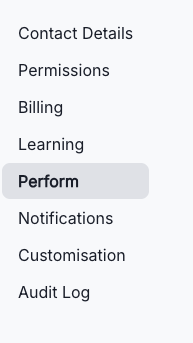
- Find the skip-level access settings.
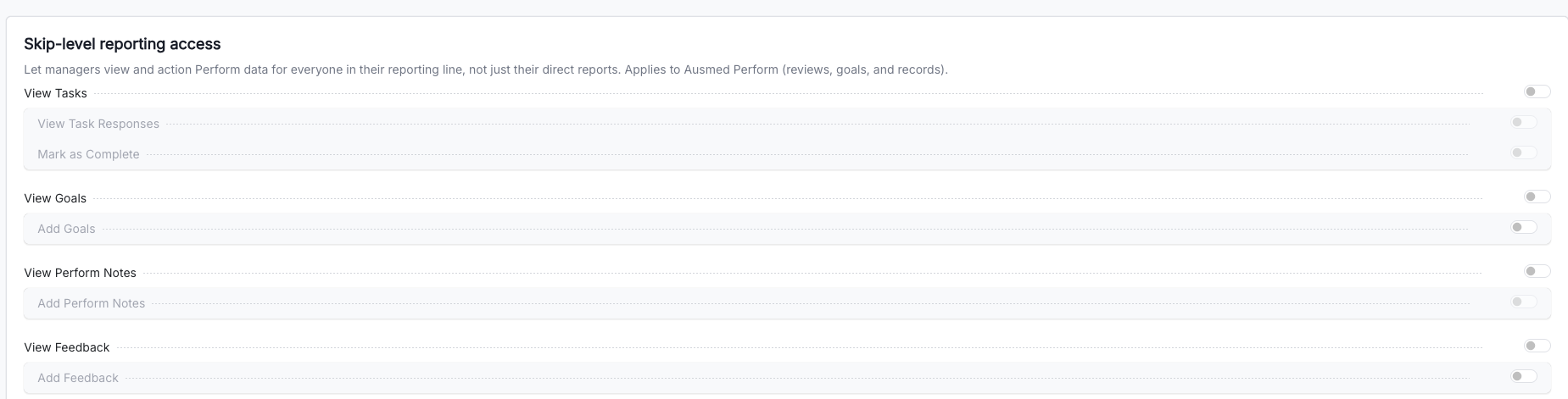
- Read the warning message.
- Turn on the toggles for each action or view you want to extend down the reporting line.
Note: Changes apply to every reporting line in your organisation.
Turn off skip-level access
- Go to Settings.
- Open the Perform section.
- Turn off each skip-level toggle.
When all toggles are off, managers can only view and action Perform data for their direct reports.
Tips
- Review your reporting lines in Perform before you turn on skip-level access.
- Start with view-only toggles if you want to test the change before extending actions.
- Tell your managers which actions and views have changed, so they know what they can now do.