
Who this article applies to
- Users with access to Ausmed Perform™
- Users with organisation permissions
In this article
- What is Reporting Line Tree View?
- How to access Reporting Line Tree View
- How to view a user’s reporting line
- How to expand reporting lines
- Understanding reporting line errors
What is Reporting Line Tree View?
Reporting Line Tree View is a visual representation of your organisation’s reporting structure. It allows managers to quickly understand who reports to whom within the organisation.
When viewing a selected user:
- Their reporting line is highlighted in red
- Only their direct reports are shown initially
- Additional reporting levels can be expanded manually
This view is useful for reviewing team structures, identifying reporting relationships, and troubleshooting reporting line issues.
How to access Reporting Line Tree View Steps
- Go to Organisation from the top navigation menu
- In the left-hand sidebar, click Groups
- Under Groups, select Reporting Lines
- By default, the page opens in Table View
- Click the Table View button
- Select Tree View
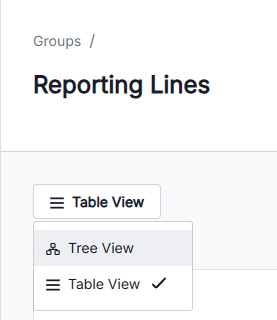
You’ll now see the Reporting Line visualisation interface.
How to view a user’s reporting line Steps
- In Tree View, search for or select the target user
- Once selected, the user’s reporting line will display automatically
- The selected user’s reporting path will appear highlighted in red
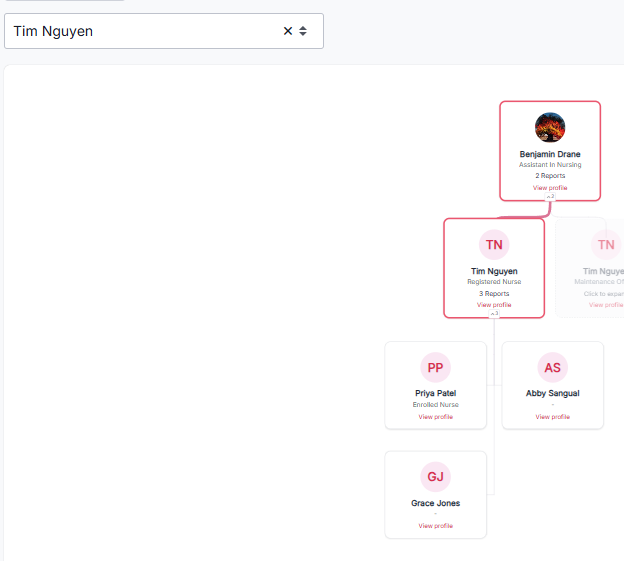
Note: Initially, only the selected user’s direct reports are displayed.
How to expand reporting lines
To view additional reporting levels:
- Click the small drop-down arrow at the bottom of the node
- The next level of direct reports will expand underneath
- Continue expanding additional users as needed
Tip: Expanding reporting lines can help identify complex reporting structures across teams.
Understanding reporting line errors
If there is an issue with a reporting structure, a yellow warning message will appear in Tree View.
These warnings are generally caused by circular reporting lines. For example:
- User A reports to User B
- User B reports to User C
- User C reports back to User A
This creates a loop that prevents the reporting structure from displaying correctly.
What to do next
If a warning appears:
- Review the affected users’ reporting relationships
- Contact Manager Support to have the reporting line corrected
Tip: Circular reporting lines must be resolved before the structure can display accurately in Tree View.