
Who does this article apply to?
Users with access to Ausmed's Learning Management System
In this article
If you’re sharing a filter,
If a filter’s been shared with you,
General information
You can share a saved filter with other managers in your organisation, so they can run the same report without setting up the filters themselves. Each person sees results based on their own access, so if they manage different teams or locations, their results will be different from yours.
If you want someone to see exactly what you see, use Share report instead. See How to share Reports in Ausmed LMS.
Share a filter
In order to share a Saved Filter, you will need to:
- Log in to the Ausmed LMS
- Go to Saved Filters in the left-hand menu. If you haven't saved a filter yet, see Save new filters.
- Select the filter you would like to share and click the three-dot menu > Manage sharing
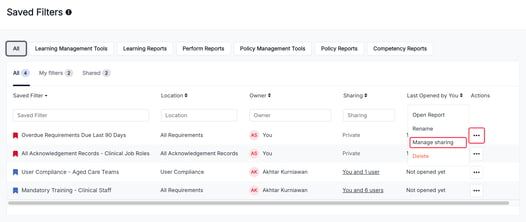
- In the No access tab, select the managers you want to share with. Use the column filters to find people by either name, user ID, email, team, location, or job role.
- Click Share.
- Check the names in the confirmation pop-up and click Share again.
The people you share with move to the Sharing tab and get an email letting them know. The filter now shows in your Shared tab.
See who has access
- In Saved Filters, click the user count in the table under Sharing column, for example "3 users"
- A side panel lists everyone with access. As the owner, you can also see who has opened the filter and when.
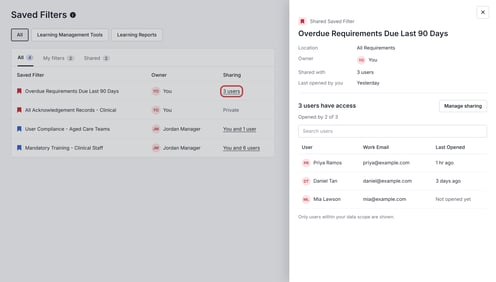
You’ll only see people within your own data access.
If someone you’ve shared with is deactivated, they’re hidden from the list and the count, but they keep their access. If everyone you’ve shared with is deactivated, the filter shows as Private and moves to My filters. If any of them are reactivated, it goes back to showing as shared.
Stop sharing with someone
- Click the three-dot menu on the filter and select Manage sharing
- In the Sharing tab, select the people you want to remove and click Remove access. To remove someone whose account is deactivated, tick Show inactive users first.
They won't be notified, and the filter disappears from their Saved Filters.
Open a filter shared with you
Filters shared with you show in the All and Shared tabs with a blue bookmark. Your own filters have a red bookmark.
- Click View Report Filter in the email, or find the filter in Saved Filters
- Click the three-dot menu and select Open Report
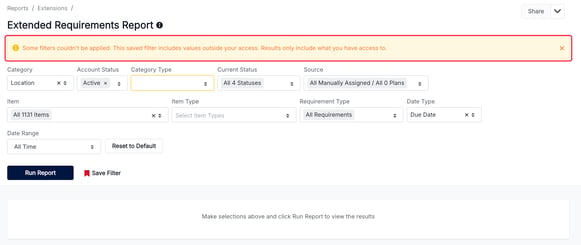
If the filter includes teams, locations or job roles you don't have access to, those values won't be applied, and you'll see the message: "Some filters couldn't be applied. This saved filter includes values outside your access. Results only include what you have access to."
Remove a filter shared with you
- Click the three-dot menu of the filter shared with you and select Remove access
The filter is removed from your Saved Filters. The owner can share it with you again if you need it later.
Good to know
- Only the owner can rename, manage sharing or delete a shared filter. If the owner renames it, you'll see the new name.
- If the owner deletes the filter, it's removed for everyone.
- You can't change the criteria of a saved filter. To change it, set up the report again and save it as a new filter with a different name.
- If the owner's account is deactivated, you can still open the filter or remove your access.