
Who does this article apply to?
In this article
- Access Permissions Management
- Understand the permissions table
- View role permissions
- Assign users to a role
- Configure data access
- Edit permissions from a user profile
- Create a custom role
Access Permissions Management
To open the Permissions Management suite:
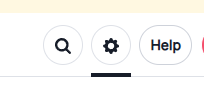
- Click Settings in the top-right corner
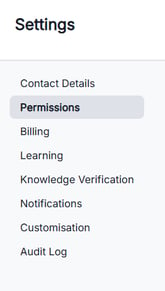
- Select Permissions from the left-hand menu
Understand the Permissions Table
The permissions table shows all roles in your organisation, including:
- Default roles (managed by Ausmed)
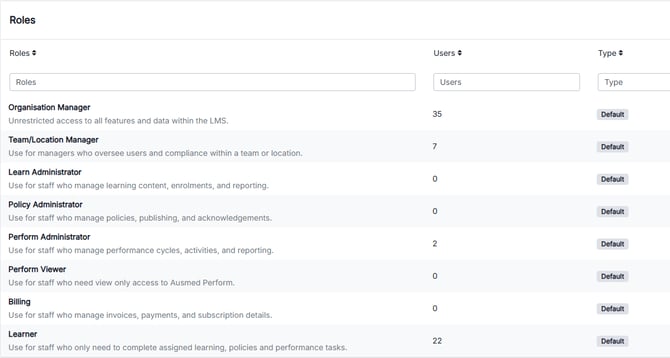
- Custom roles (created by your organisation)
Each role controls what users can view and do across the platform.
View Role Permissions
To view what a role can access:
- Find the role in the table
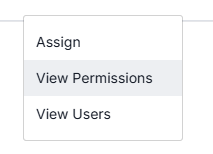
- Click the ⋮ (three dots) menu
- Select View permissions
You can then:
- Browse permissions by product area
- Toggle permissions on or off (custom roles only)
Note: Default roles are managed by Ausmed and cannot be edited.
Assign Users to a Role
To assign a role:
- Click the ⋮ (three dots) next to the role
- Click Assign
- Select one or more users
- Click Add users to role
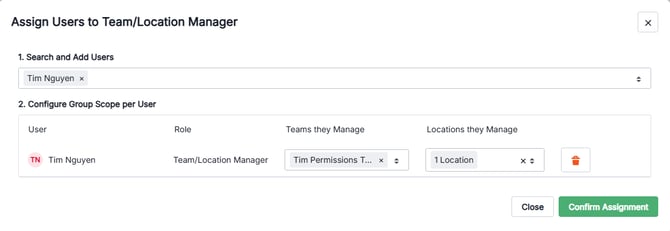
- Click Confirm
Configure Data Access
Some roles require you to set data access when assigning users.

You can choose:
- Full organisation access
- Users can view and act on data across the entire organisation
- Group access
- Users can only access selected teams or locations
This helps you control how much visibility and control a user has—even within the same role.
Edit Permissions from a User Profile
You can also assign or update roles from a user profile:
- Go to the User table
- Click Edit on a user
- Select the Permissions tab
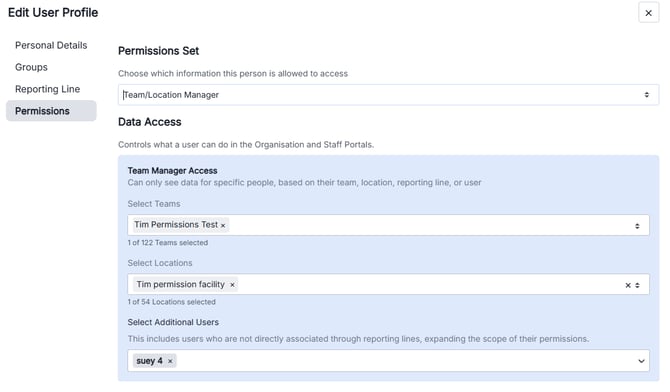
- Choose a role
- Set data access (if required)
- Save your changes
Create a Custom Role
To create a new role:
- Click Create custom role
- Enter:
- Role name
- Description
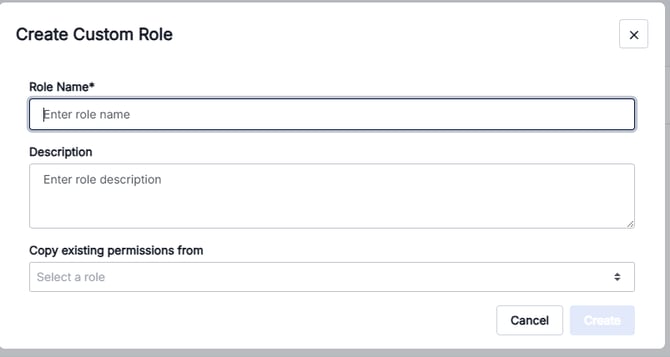
- (Optional) Copy permissions from an existing role
- Click Create
You’ll then land on the permissions screen where you can:
- Expand each product area
- Toggle permissions on or off
- Click Update to save
The new role will appear in the permissions table.
Tips
- Use group access to limit visibility without creating multiple roles
- Copy an existing role to save time when creating similar permission sets
- Review permissions carefully—roles control access across all product areas
To find more information on the release, click here for the Release Note