
Who is this article for?
- Users with access to Ausmed's Learning Management and Policy Management Systems.
- Users with organisation manager permissions.
In this article:
-
What is bulk upload for training plans?
-
How to bulk upload training plan shells
-
CSV fields for training plan uploads
-
How to bulk upload item schedules
-
CSV fields for item schedules
-
Formatting rules and examples
-
Error handling and validation
-
Tips for successful uploads
What is bulk upload for training plans?
Bulk upload allows you to:
-
Create multiple training plan shells at once
-
Add multiple training items to a plan in one upload
This reduces manual work and speeds up large-scale plan creation.
How to bulk upload training plan shells
-
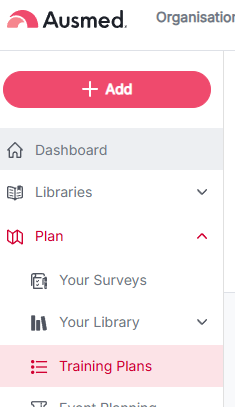
Go to Learning > Training Plans
-
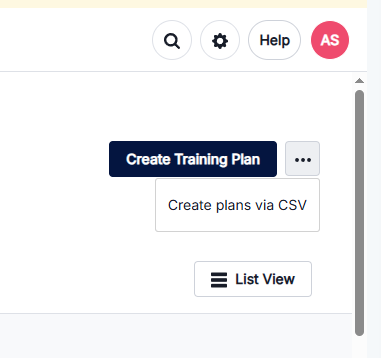
On the Training Plan overview page, click the ⋮ (three dots) menu
-
Click Create plans via CSV
-
Download the CSV template
-
Complete the template
Title: the title of your Training Plan
Description: add description for your training plan (optional)
Is it Mandatory: is this training plan mandatory - input Y for yes or N for no
Does it contribute to Compliance: should this training plan contribute to compliance - input Y for yes or N for no
-
Upload the file
-
Click Confirm
Once uploaded, training plans will appear in the Drafts section.
CSV fields for training plan uploads
You only need to complete four fields:
| Field | Description |
|---|---|
| Title | Name of the training plan |
| Description | Short summary of the plan |
| Is Mandatory | Y / N |
| Contributes to Compliance | Y / N |
Important rule:
-
If Is Mandatory = No, then Contributes to Compliance must also be No
-
If not, the system will automatically correct it or flag an error
How to bulk upload item schedules
-
Open a training plan (Draft)
-
Click Add Item > ⋮ (three dots)
-
Select Bulk Add Items
-
Download the CSV template
-
Complete the template
-
Upload the file
-
Review validation results
-
Click Confirm
CSV fields for item schedules
| Field | Description |
|---|---|
| Item Name / Item ID | Use one or both to identify the item |
| Job Roles | Must match system job roles (comma-separated for multiple) |
| How Often Do You Require Staff to Complete This Item? |
Inputs: [Number]+[Period] 1Y = one year |
| When Do You Require Users to Complete This Item? |
enrolment-date = based on enrolment date |
| How Long Would You Like to Give Users to Complete This Item? |
Inputs: [Number]+[Period] 1Y = one year |
| Would You Like to Give Users an Automatic Extension? (Y/N) | Y / N |
| Extension Days |
Required if extension = Y Inputs: [Number]+[Period] 1Y = one year |
| Early Recognition | Y / N |
| Early Recognition Period |
Required if Early Recognition = No Inputs: [Number]+[Period] 1Y = one year |
Formatting rules and examples
Time formats
Use shorthand values:
| Unit | Format |
|---|---|
| Days | 30D |
| Weeks | 2W |
| Months | 6M |
| Years | 1Y |
Examples:
-
1Y→ yearly -
6M→ every 6 months
Key logic rules
-
If When Due = Last Completion, frequency must be Yearly
-
If Once Only, do not combine with recurring logic
-
If Automatic Extension = Yes, you must enter extension days
-
If Early Recognition = No, you must enter a recognition period
-
Job roles must match exactly (not case sensitive)
Error handling and validation
When you upload your CSV:
-
The system runs a validation check
-
Errors are shown with:
-
Row number
-
Description of the issue
-
Example error:
“Row 4: When due date is specified, frequency must be yearly”
How to fix:
-
Open your CSV
-
Locate the row
-
Update the incorrect field
-
Save and re-upload
Repeat until no errors remain.
Tips for successful uploads
-
Start with a small test file before large uploads
-
Use Item ID where possible to avoid mismatches
-
Copy job roles directly from the platform to ensure accuracy
-
Keep formatting consistent (especially time values)
-
Fix errors one at a time and re-upload
Note: Bulk uploads create draft training plans, which you can review and edit before publishing.