
Who this applies to
- Users with access to the Ausmed Events™
The Programs directory
Go to Directories > Programs to see all Programs in your organisation.
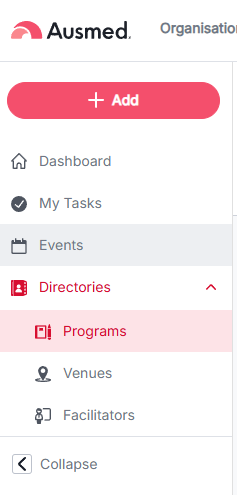
The table shows:
| Column | What it shows |
|---|---|
| Program Title | The Program's name |
| Description | The Program's description |
| Resources | Number of resources added to the Program |
| Date Updated | When the Program was last changed |
| Date Added | When the Program was created |
| Actions | Actions available for that Program |
Each column can be filtered using the field under its header, and most columns can be sorted. Use the rows-per-page control and page numbers at the bottom to move through the list.
Create a Program
- From the Programs directory, click + Create a Program.
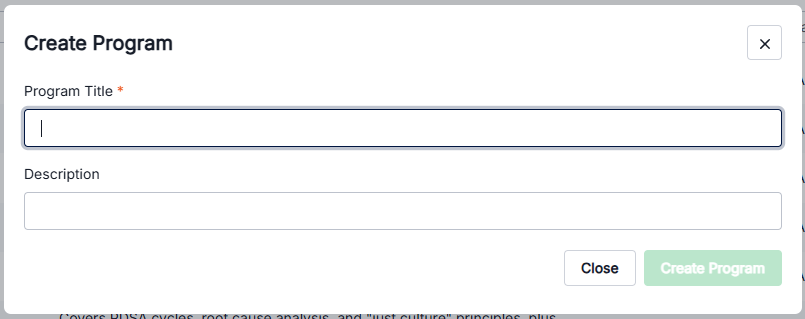
- Enter a Program Title (required).
- Enter a Description (optional).
- Click Create Program.
This opens the Program in the Program Builder.
Build the agenda
The Program has two tabs: Program Builder and Details.
Details holds the Program's Title and Description — the same fields set when the Program was first created.
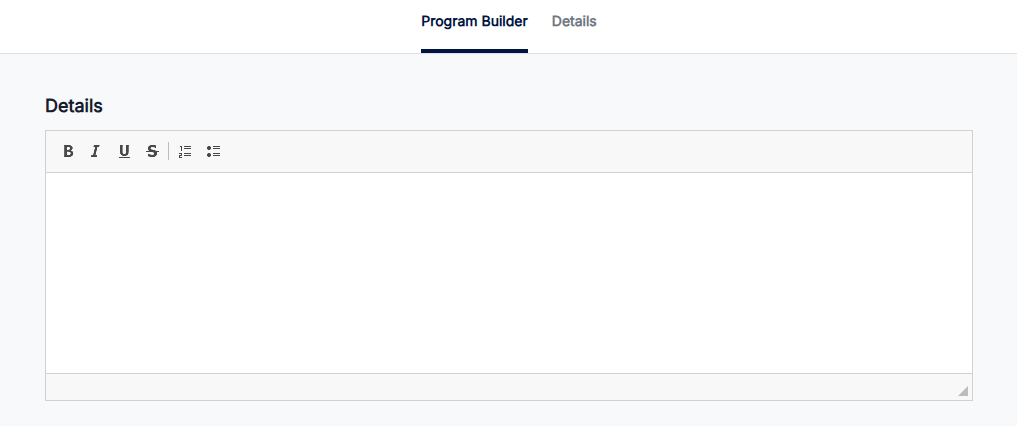
In Program Builder, the Agenda section is a rich text editor (bold, italic, underline, strikethrough, ordered and unordered lists) where you write out the plan for the session.
Add resources
Below the Agenda, the Resources section lists everything attached to the Program
Currently you'll be able to add resources from Your Library
- Click + Add Resources.
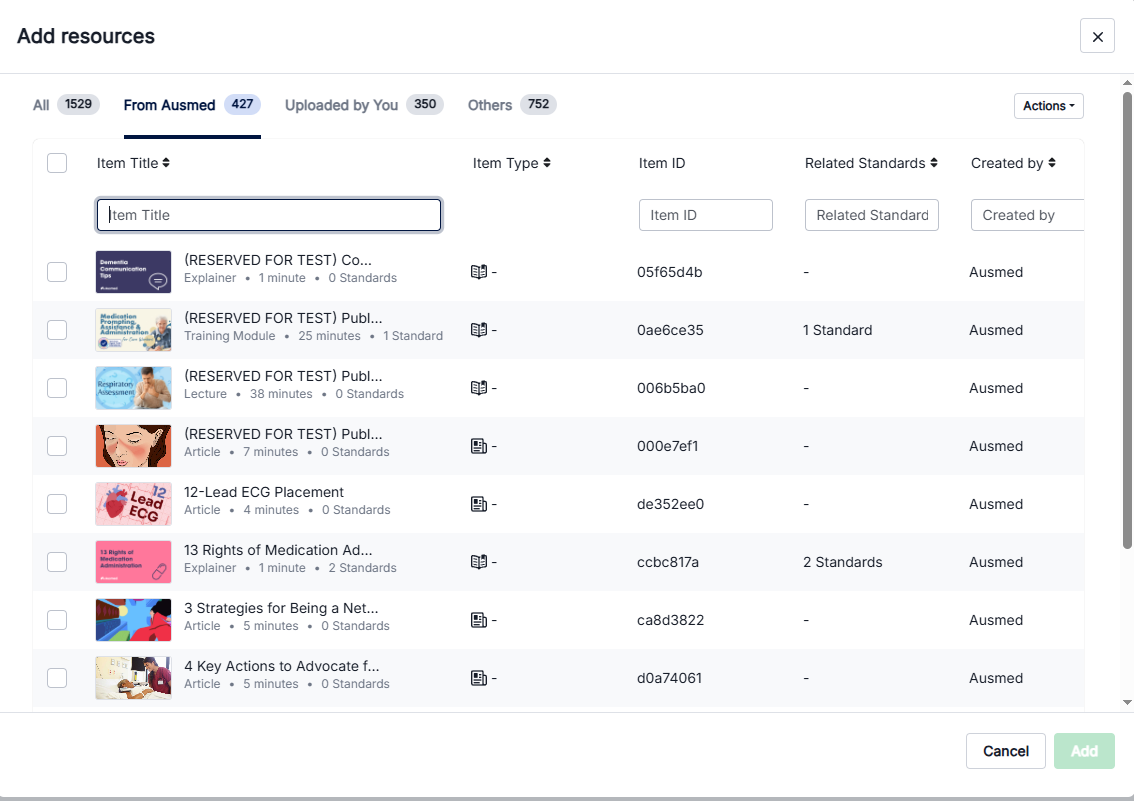
- For each resource, choose when it should be shown to staff: Before, During, or After the Event.
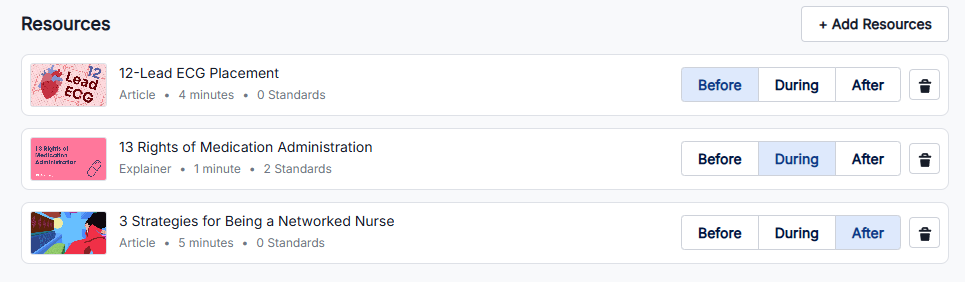
- Use the trash icon next to a resource to remove it.